If you’ve been searching for how to fix screen tearing, you’re not alone. The issue affects gamers, content creators, and everyday computer users across different hardware configurations. Fortunately, screen tearing is usually caused by a mismatch between your monitor’s refresh rate and your graphics card’s frame output, meaning there are several effective ways to resolve it without replacing your entire system.
Screen tearing is one of the most annoying graphical glitches that can occur while playing games or watching videos. Instead of the smooth image you might expect, it looks like the screen is split in two, showing two different frames. This effect can also manifest as several horizontal lines on your display, breaking your immersion in what you’re watching or playing.
This guide will explain what screen tearing is and give you some tips on how to get rid of it. We have some helpful advice for NVIDIA and AMD owners who want to reduce screen tearing in their monitors. If you’re a Windows user or have a monitor with adaptive sync technology, you should have some useful insight after reading this article.
What Readers Need to Know First
Before doing any changes or installation make sure you know that the problem might not be your graphics card. It can also happen because of asynchronization of the GPU and your monitor.
Several factors influence whether screen tearing appears, including:
- Your monitor’s refresh rate
- Your graphics card’s frame rate
- Display cable quality
- Graphics driver configuration
- Game optimization
- Windows display settings
Many users are quick to blame their graphics card, when in reality it could be a simple case of software tweaks that can eliminate tearing completely
Another important consideration is that there is no magic bullet; what works for one computer is not necessarily going to work for another. It often comes down to a matter of trial and error and could depend on what hardware you’re using, what monitor you’re using, and what kind of games or applications you’re running.
Understanding Screen Tearing
Screen tearing is a distortion that happens when graphic cards send out frames at different intervals or faster than the monitor can display them. This causes the monitor to show part of two different frames at the same time, resulting in a split screen where the top portion shows one image while the bottom displays another
This problem becomes especially noticeable during:
- Fast-paced FPS games
- Racing games
- Open-world titles
- High-speed camera movement
- Video playback
- 3D rendering applications
The faster the movement on screen, the easier it becomes to notice tearing.
How Refresh Rate and Frame Rate Work Together
To understand how to fix screen tearing, you first need to know the relationship between refresh rate and frame rate.
A monitor refresh rate, measured in Hertz (Hz), indicates how many times the display updates every second.
For example:
- 60Hz monitor = 60 refreshes per second
- 120Hz monitor = 120 refreshes per second
- 144Hz monitor = 144 refreshes per second
- 240Hz monitor = 240 refreshes per second
Your graphics card generates frames independently.
For example:
- GPU outputs 95 FPS
- Monitor refreshes at 60Hz
Since both devices operate independently, the monitor may begin drawing a new image before the previous frame has finished displaying. This mismatch creates the familiar tearing line.
Common Causes of Screen Tearing
Several issues can contribute to screen tearing. Identifying the underlying cause makes troubleshooting much easier.
Frame Rate Exceeds Refresh Rate
This is by far the most common reason.
If your GPU produces significantly more frames than your monitor can display, synchronization problems become likely.
For example:
- GPU: 180 FPS
- Monitor: 60Hz
Without synchronization technology, tearing becomes almost inevitable.
Disabled Vertical Synchronization (V-Sync)
A V-Sync is a method intended to reduce screen tearing by forcing the GPU to wait until the monitor has completed refreshing before attempting to send the next image.
By disabling it, the graphics card is able to send the images to the screen without waiting. While many competitive players choose to turn it off in order to reduce the input delay, however, it can cause more screen tearing.
Outdated Graphics Drivers
Graphics drivers control communication between your operating system and GPU.
Older drivers may include bugs, compatibility issues, or poor optimization that causes visual artifacts.
Updating drivers often resolves display-related problems and improves stability.
Incorrect Display Settings
Windows allows users to select different refresh rates.
Sometimes the monitor defaults to:
- 60Hz
even though it supports:
- 120Hz
- 144Hz
- 165Hz
- 240Hz
Running your monitor below its supported refresh rate may contribute to visual inconsistencies.
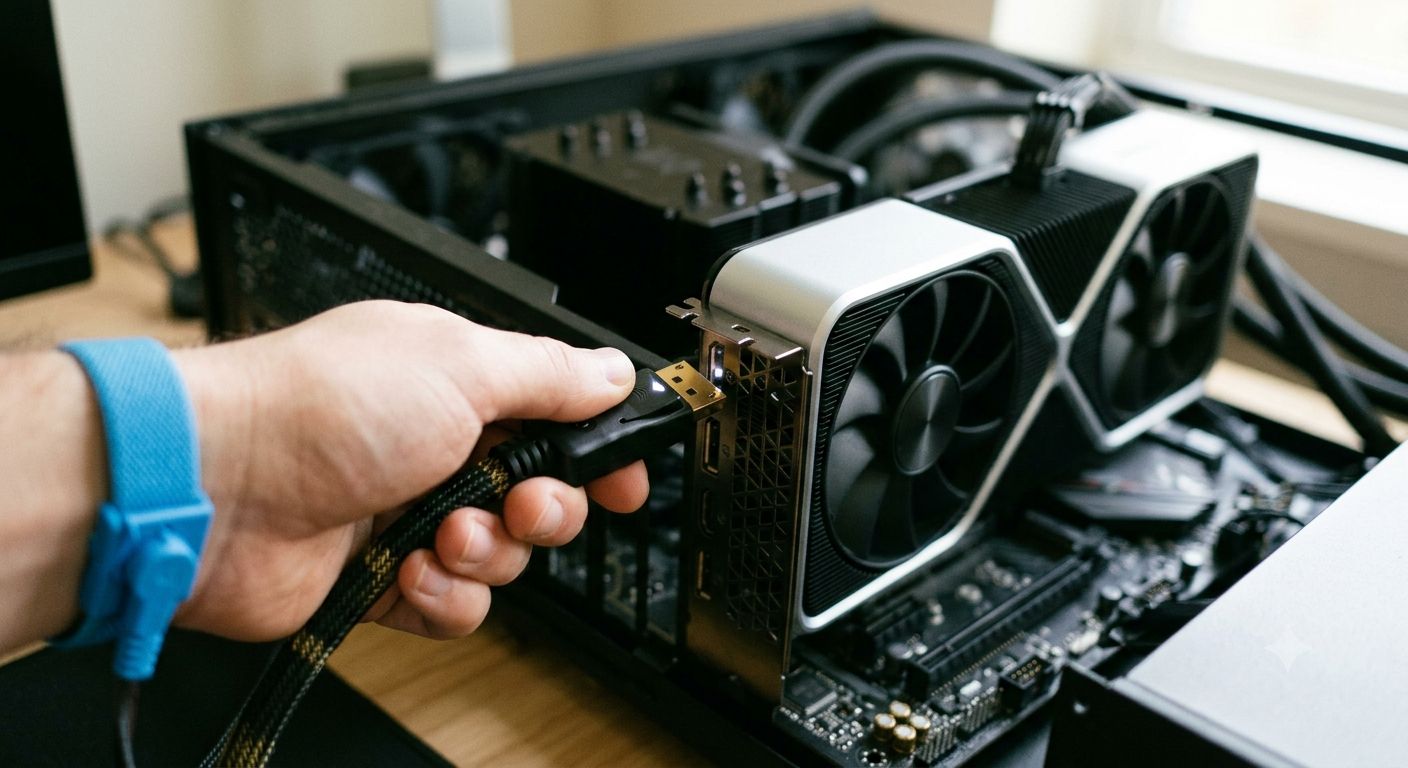
Faulty or Low-Quality Display Cable
Sometimes the issue will not be related to software.
Using old or faulty HDMI cables can cause issues with achieving higher refresh rates
DisplayPort cables are recommended for gaming monitors that have a high refresh rate capability.
A cable that does not support the maximum bandwidth of your monitor can cause intermittent display issues, so you might want to invest in a new one
Poorly Optimized Games
Not every game is optimized equally.
Some titles suffer from inconsistent frame pacing, which may produce tearing even on powerful hardware.
Checking for game updates and installing the latest patches often improves performance.
How to Fix Screen Tearing
After you have resolved the potential cause, you may start implementing the best solutions for tear screen pc. Most of them are about improving the overall sync of your graphics card and monitor rather than changing the hardware.
Enable V-Sync
One of the easiest and most effective solutions is to enable Vertical Sync or V-Sync. This feature allows you to synchronize your graphics card performance to your monitor’s refresh rate, which can prevent screen tearing.
It is generally recommended to turn on V-Sync because it will reduce screen tearing in your games to a great extent if not eliminate it.
You can easily toggle V-sync off/on within your game’s graphic settings if the title supports it. You can as well open your NVIDIA Controls or AMD Software and change the settings for the game you are playing or want to play.
Although V-Sync is an excellent solution, it may add input lag to some games, which may not be ideal for competitive and fast-paced games. So, if you are having problems in this category, maybe a different option would be better for you.
Comprehensive Guide to Fixing Screen Tearing
Once you have figured out why you are getting screen tearing, you need to fix it. Below you will find a number of solutions based on your video card or software options, from very simple fixes to some very expensive high-end monitors for the absolute best in tear free gaming.
Use G-Sync or FreeSync for Better Synchronization
If your monitor has adaptive sync technology, the best way to avoid screen tearing without getting the annoying input lag of regular V-Sync is to simply turn on the adaptive sync.
NVIDIA G-Sync
G-Sync is the proprietary adaptive synchronization technology developed by NVIDIA for compatible monitors. Unlike standard monitors which require your graphics card to operate at a specific refresh rate, G-Sync can adjust the refresh rate of the display to match the frames delivered by the graphics card in real-time
This results in:
- Smoother gameplay
- Reduced screen tearing
- Lower stuttering
- Better responsiveness
To enable G-Sync:
- Open the NVIDIA Control Panel.
- Select Set Up G-SYNC.
- Enable G-SYNC for full-screen or windowed mode.
- Apply the settings and restart the game if necessary.
AMD FreeSync
AMD users can achieve similar results with FreeSync-compatible monitors. FreeSync performs the same synchronization task using DisplayPort or supported HDMI connections.
To enable FreeSync:
- Open AMD Software: Adrenalin Edition.
- Navigate to the Display settings.
- Turn on AMD FreeSync.
- Verify that your monitor also has FreeSync enabled through its on-screen display menu.
For gamers using compatible hardware, adaptive sync is often the best long-term solution because it minimizes both tearing and stuttering while maintaining responsive controls.
Limit Your Frame Rate
Many users overlook frame rate limiting, yet it can significantly reduce tearing.
For example, if your monitor refreshes at 144Hz but your graphics card consistently renders 220 FPS, the excess frames may contribute to synchronization issues.
Setting an FPS cap close to your monitor’s refresh rate helps maintain stable performance.
Examples include:
- 60Hz monitor → Limit to 60 FPS
- 75Hz monitor → Limit to 75 FPS
- 120Hz monitor → Limit to 120 FPS
- 144Hz monitor → Limit to 141–144 FPS
- 165Hz monitor → Limit to around 162 FPS
Most modern games have a built-in frame limiter. Otherwise, you can use NVIDIA Control Panel, AMD Software, or utilities like RTSS (RivaTuner Statistics Server) to limit FPS.
Lowering the FPS often results in a calmer gameplay experience, allowing you to reduce GPU load and keep the card cooler.
Verify Your Monitor Refresh Rate
A surprisingly common issue is that Windows may not automatically use your monitor’s highest supported refresh rate.
For example, a 165Hz gaming monitor may still be running at 60Hz after a fresh Windows installation.
To check:
- Open Settings.
- Select System.
- Click Display.
- Open Advanced Display Settings.
- Choose the highest available refresh rate.
Switching from 60Hz to 144Hz or 165Hz often delivers a dramatic improvement in motion clarity and overall desktop responsiveness.
Update Graphics Drivers
The graphics driver software is regularly updated to address display synchronization issues, game performance optimization, and compatibility enhancements.
If you encounter frequent screen-tearing problems, the first effective solution would be to install the latest GPU drivers.
NVIDIA Users
Download the newest Game Ready Driver from NVIDIA or update through the NVIDIA App.
AMD Users
Use AMD Software: Adrenalin Edition to check for the latest driver updates.
Intel Graphics
Intel Arc and integrated graphics users can update drivers using Intel Driver & Support Assistant.
After updating, restart your computer and test the affected games again.
Adjust In-Game Graphics Settings
Sometimes screen tearing isn’t caused by Windows or your monitor at all—it may be related to how a specific game is configured.
Consider adjusting settings such as:
- V-Sync
- Borderless Fullscreen
- Exclusive Fullscreen
- Frame Rate Limit
- Graphics Preset
- Motion Blur
Running a game at graphic settings beyond what your system can handle can lead to unevenly paced frames, making tearing more apparent.
Reducing a couple of graphical settings may well allow for a stable framerate, improving the quality of the image without greatly compromising the resolution.
Enable Game Mode in Windows
Windows Game Mode prioritizes the allocation of system resources to games by limiting the activity of other processes.
Although it does not directly address screen tearing, it indirectly helps reduce it by ensuring a consistent frame rate.
To enable it:
- Open Settings.
- Select Gaming.
- Click Game Mode.
- Turn it on.
This is especially helpful for mid-range systems where background applications compete for CPU resources.
Close Background Applications
High CPU usage from unnecessary applications can interfere with frame delivery.
Before gaming, close programs such as:
- Web browsers with many tabs
- Streaming software
- Large file downloads
- Video editors
- Unused launchers
- RGB control software running excessively
Reducing background workload allows your GPU and CPU to maintain steadier frame output.
Check Your Display Cable
Not all display cables support high refresh rates.
Older HDMI versions may limit performance depending on your monitor’s resolution and refresh rate.
For example:
- HDMI 1.4 may struggle with higher refresh rates at 1440p.
- DisplayPort generally provides better support for modern gaming monitors.
- Damaged cables may introduce intermittent display problems.
If screen tearing appears after replacing a monitor or upgrading hardware, verifying the cable specification is worthwhile.
Update Your Monitor Firmware
Some high-end gaming monitors utilize firmware updates to enhance the adaptive sync performance, compatibility, and stability.
While it is not an essential component of the monitor, you may want to visit the manufacturer’s support page to see if there are any recommended updates to resolve your issue.
Make sure to follow the instructions on the manufacturer’s page precisely when updating your monitor’s firmware.
Expert Insights: Why High FPS Alone Doesn’t Guarantee Smooth Gameplay
A common misconception is that achieving very high FPS automatically delivers the best gaming experience.
In reality, smooth gameplay depends on frame consistency, not just peak frame rates.
For example:
- System A averages 250 FPS but fluctuates between 120 and 250 FPS.
- System B maintains a stable 144 FPS throughout gameplay.
Most players find System B preferable due to more paced frame intervals causing less graphical stutter and better overall frame pacing.
This is why many pc gaming enthusiasts advocate for the use of g-sync, free-sync and fps limiters.
Best Practices to Prevent Screen Tearing
Preventing screen tearing is easier than constantly troubleshooting it. A few good habits can help maintain smooth performance over time:
- Keep your graphics drivers updated.
- Use your monitor’s highest supported refresh rate.
- Enable adaptive sync if available.
- Avoid running unnecessary background applications while gaming.
- Use high-quality HDMI or DisplayPort cables.
- Set realistic graphics settings that your hardware can handle.
- Cap your frame rate when it greatly exceeds your monitor’s refresh rate.
- Regularly update games to benefit from performance improvements and bug fixes.
Following these practices not only reduces screen tearing but also contributes to a more stable and enjoyable gaming experience.
Real-Life Applications: Where Screen Tearing Matters Most
Although screen tearing is more common in PC gaming, it can appear in various graphical tasks. Knowing where it appears most often will help you find the best solution for your situation
Competitive Gaming
For gamers who play fast-action games such as first-person shooters, battle royale, racing, and online matches, screen tearing is unacceptable. Quick aiming provokes the appearance of such lines, making it more challenging to play.
In first-person shooters and similar games, gamers compete with input lag caused by V-Sync. However, this issue can be resolved by using advanced graphics technologies such as G-Sync or FreeSync. These two methods allow you to reduce the lag and get rid of screen tearing while improving the game’s visuals.
Story-Driven and Open-World Games
In single player games where immersion is of utmost importance, framerates are often secondary to the visual quality of the image presented. Turning on V-Sync or adaptive sync will provide a much better experience in many cases by removing undesirable screen tearing during exploration and cinematic segments
Video Editing and Content Creation
Content creators who work with high-resolution video previews may experience screen tearing while working with the timeline, especially if their display settings are not configured correctly. To avoid this problem, you should make sure the monitor’s refresh rate is set to the desired value, update the graphics drivers, and enable hardware acceleration.
Everyday Computer Use
Although less common, screen tearing can also occur while scrolling through web pages, resizing application windows, or watching high-definition videos. These issues are typically caused by outdated display drivers, incorrect Windows display settings, or software incompatibilities, rather than hardware failure.
Common Questions Readers Have
Can screen tearing damage my monitor?
No. Screen tearing is a synchronization issue between your graphics card and display. It does not physically harm your monitor or graphics card.
Is V-Sync always the best solution?
Not necessarily. While V-Sync is very effective at eliminating screen tearing, it can add noticeable input lag to some games. If your monitor supports adaptive refresh rates, G-Sync or FreeSync will typically provide a much smoother experience with less lag
Why does screen tearing happen even with a powerful GPU?
Even high-end graphics processing units may cause the display tearing effect due to the asynchronous transfer of frames to the screen. The phenomenon happens when a video card generates image frames faster than a monitor refresh rate allows for their seamless display.
Does increasing refresh rate reduce screen tearing?
Yes. Monitors with higher Hz rates such as 120Hz, 144Hz, 165Hz, or 240Hz refresh the image on screen more frequently which reduces the appearance of screen tearing, but one should still enable sync technologies for the best results.
Should I use HDMI or DisplayPort?
Both can work well, but DisplayPort generally offers better support for high refresh rates and adaptive sync features on gaming monitors. Always use a cable that matches your monitor’s capabilities.
Can Windows updates fix screen tearing?
Sometimes. Windows updates may improve graphics compatibility and include display-related fixes. However, updating your GPU drivers and checking your display settings usually has a greater impact.
Is screen tearing the same as stuttering?
No. These are two completely different problems. Screen tearing is caused by two or more frames being painted on the screen at once, which causes lines to appear across the display. Stuttering is caused by the frame rate being inconsistent or stuttering. Some displays suffer from both.
Key Takeaways
If you’re trying to learn how to fix screen tearing, remember that the solution usually involves improving synchronization between your graphics card and monitor rather than replacing expensive hardware.
The most effective approaches include:
- Enable V-Sync if input lag is not a concern.
- Turn on G-Sync or FreeSync if your monitor supports adaptive sync.
- Set your monitor to its highest available refresh rate.
- Keep your graphics drivers updated.
- Use an FPS limiter when your frame rate greatly exceeds your monitor’s refresh rate.
- Verify that your HDMI or DisplayPort cable supports your desired resolution and refresh rate.
- Optimize in-game graphics settings for stable frame pacing.
- Close unnecessary background applications to improve system performance.
- Regularly install game patches and Windows updates for improved compatibility.
Applying these best practices can dramatically reduce screen tearing while creating a smoother, more responsive computing experience.
Conclusion
how to fix screen tearing is one of the most common display issues faced by gamers and PC users, but it is also one of the easiest to resolve once you understand its root cause. Rather than defective hardware, screen tearing happens when there is an inconsistency between the number of frames rendered by your GPU and the number of monitor refreshes per second.
The various solutions below, whether using V-Sync, reducing your GPU’s FPS output, or updating graphics card drivers, will correct the issue in unique ways. Only one is optimal to your GPU, the games you play, and whether you prioritize performance over graphical fidelity.
Using whichever methods below will ensure that you have smooth graphics in all your favorite programs and games. It will also fix the screen tearing issue in all your regular tasks, freeing you from this annoyance for good. All it takes is a few minutes of your time to optimize your PC for the long term.