If you’re searching for how to fix screen flickering, In that case, chances are that your display is glitching and that your screen is flashing, flickering, and changing brightness frequently. Whatever the case may be, be that the problem occurs continuously or under specific circumstances, the problem is bound to prevent you from getting any of your work, gaming, movie watching or plain reading done properly. However, on the bright side, display flickering can be resolved and more often than not, the issue that you are faced with is simple as updating your graphics driver, changing your refresh rate, tightening up your display cable or fixing software issues.
Nonetheless, there are times when the cause might be faulty hardware – from a broken monitor, damaged display cable or even a broken graphics card or laptop screen.
This makes finding the source of your problem, and therefore your solution, particularly challenging. Replacing costly hardware until you find what’s wrong will definitely not do your budget or time any favors.
This guide explains how to fix screen flickering through a logical troubleshooting process. Instead of making assumptions, inspect the problem methodically. This helps you identify the cause, eliminate common issues, and decide if a simple adjustment will solve it.setting or professional assistance.
What Is Screen Flickering?
Screen flickering occurs when your display repeatedly flashes, blinks, dims, or refreshes unexpectedly. The behavior may be subtle or severe.
Some people notice:
- Rapid flashing
- Brightness constantly changing
- Horizontal or vertical lines appearing
- Random black screen flashes
- Display turning on and off
- Image shaking
- Colors briefly changing
- Screen momentarily disappearing
Flickering may occur:
- Only during startup
- After installing updates
- While gaming
- During video playback
- When opening certain applications
- Only when using battery power
- Only on an external monitor
- Continuously regardless of what you’re doing
Recognizing exactly when the flickering happens provides valuable clues about its underlying cause.
Why Screen Flickering Happens
A display depends on multiple hardware and software components working together.
These include:
- Graphics processor (GPU)
- Display driver
- Operating system
- Display cable
- Internal display connector
- Refresh rate settings
- Monitor electronics
- Power delivery
If any one component in the image production process is causing problems you’ll likely get a flickering image. The primary goal is to make the computer repair and not necessarily have to swap out the hardware. Instead you can locate what aspect of the display is causing the image to glitch or stutter.
Common Causes of Screen Flickering
Understanding the most common causes makes troubleshooting much easier.
Outdated or Corrupted Graphics Drivers
A Display Driver is the intermediary device that is connecting your Operating system and the Graphic Card. So, whenever these drivers become faulty during update or become outdated for a good amount of time, you’ll see unexpected flickers. Driver issues are one of the most frequent software-induced causes of screen disturbances.
Incorrect Refresh Rate
The refresh rate determines how many times the display updates every second.
If Windows or another operating system is configured to use a refresh rate unsupported by your monitor, the image may flicker, appear unstable, or briefly lose signal.
Higher refresh rates generally provide smoother motion, but only if both the monitor and graphics hardware support them.
Loose Display Connections
External monitors depend on reliable cable connections.
If an HDMI, DisplayPort, USB-C, DVI, or VGA cable is loose, it can disrupt the video signal and lead to intermittent screen flickering.
Even a cable that appears connected may not be fully seated.
Failing Graphics Hardware
If the graphics card develops hardware faults, symptoms often include:
- Screen flickering
- Colored artifacts
- Display freezing
- Random crashes
- Black screens
These issues may become more noticeable while gaming or performing graphics-intensive tasks.
Faulty Monitor
Sometimes the computer is working perfectly while the monitor itself develops internal problems.
A failing monitor may flicker even when connected to multiple computers.
Older LCD monitors with aging internal components are particularly susceptible.
Software Conflicts
Some applications interfere with display rendering.
Examples include:
- Screen recording software
- Overlay applications
- GPU tuning utilities
- Certain antivirus programs
- Recently installed software
If flickering begins immediately after installing new software, that program deserves closer attention.
How to Tell if the Problem Is Hardware or Software
Before making any changes, determine what’s causing the problem.
One simple method is observing whether the flickering appears before the operating system finishes loading.
If the BIOS or startup logo flickers
The problem is more likely related to:
- Display hardware
- Graphics card
- Internal screen cable
- Monitor
- Power supply
If flickering starts only after Windows or macOS loads
The issue is more likely:
- Graphics drivers
- Display settings
- Software conflicts
- Operating system updates
This distinction immediately narrows the list of possible causes.
First Troubleshooting Step: Restart the Computer
It may seem like the most basic thing in the world, but the humble restart still is often one of the most common remedies. Many software crashes, partial updates and even graphics driver bugs are resolved with a full reboot of the system. Next time instead of putting your system in Sleep mode and waking it again, restart it and if that stops the flicker then chances are it wasn’t a permanent failure anyway.
Check Whether the Flickering Affects One Display or All Displays
If you’re using multiple monitors, compare their behavior.
Scenario 1
Only one monitor flickers.
This often suggests:
- Faulty monitor
- Damaged cable
- Incorrect monitor settings
- Display port issue
Scenario 2
Every connected display flickers.
This points more toward:
- Graphics drivers
- GPU problems
- Operating system
- Graphics settings
Testing with another monitor can quickly eliminate several possibilities.
Inspect Every Display Cable
Many display problems are caused by something surprisingly simple.
Turn off the computer and inspect every cable.
Look for:
- Bent connectors
- Frayed wiring
- Loose plugs
- Damaged ports
- Dirt inside connectors
Reconnect each cable firmly before turning the system back on.
If possible, replace the cable with another certified cable rather than continuing to test a potentially defective one.
Poor-quality HDMI cables, especially older ones, may struggle with higher resolutions and refresh rates.
Test a Different Display Port
Modern graphics cards usually include multiple output ports.
If you’re using HDMI, try another HDMI port.
If DisplayPort is available, test that connection instead.
Likewise, if one USB-C display output flickers, another port may function normally.
Changing ports helps determine whether the problem lies with the connector rather than the monitor itself.
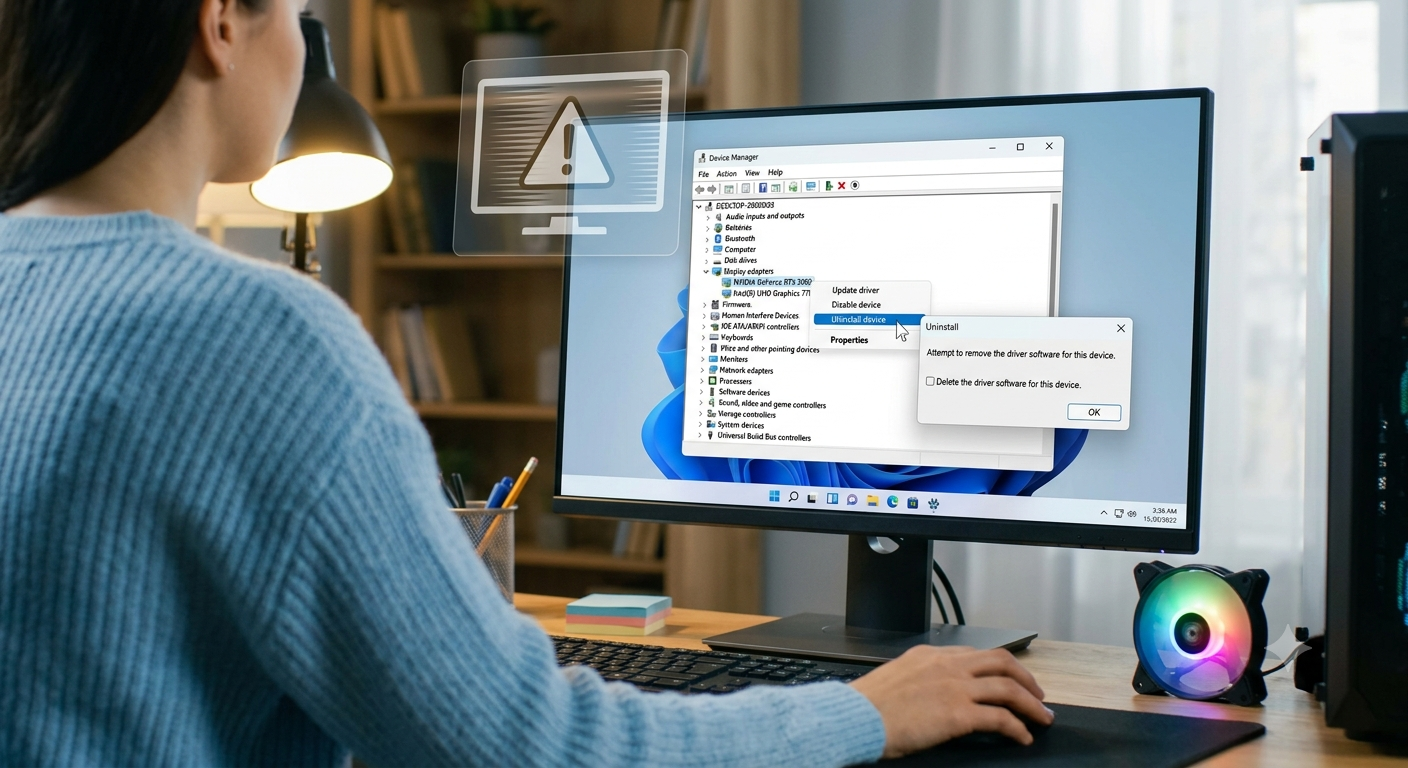
Update Your Graphics Driver
Updating the graphics driver: One of the most useful tricks for screen flicker.graphics manufacturers routinely push out driver updates, which help stabilize your screen and sort out bugs, compatibility issues that could arise after new OS releases.
Before installing a new driver:
- Identify your graphics hardware (Intel, AMD, or NVIDIA).
- Download drivers directly from the hardware manufacturer’s official website whenever possible.
- Restart your computer after installation.
If the flickering began immediately after a recent driver update, rolling back to a previous stable version may resolve the issue.
Check for Recent Software Changes
Ask yourself a few questions:
- Did the flickering begin after installing new software?
- Did Windows recently update?
- Was a graphics driver automatically installed?
- Did you recently connect new hardware?
- Have you installed display management software?
A clear timeline often reveals the source of the problem.
If the issue started immediately after a specific update or application installation, temporarily removing that change may help confirm whether it is responsible.
Advanced Solutions When Basic Fixes Do Not Stop Screen Flickering
If you’ve already restarted your device, updated drivers, and checked your cables, but the problem continues, it’s time to dig a little deeper. Understanding how to fix screen flickering often means isolating whether the issue is caused by software, hardware, or a combination of both. Taking a systematic approach prevents unnecessary repairs and helps you identify the real cause more efficiently.
Test the Display in Safe Mode
In this mode, Windows starts only the necessary drivers and services, If after starting your PC in this mode the screen stop flickering then you need to investigate third-party apps, drivers of display card and background services which can be the cause.
To test this:
- Restart your computer and enter Safe Mode.
- Observe the display for several minutes.
- Open a few basic applications.
- Compare the behavior with a normal Windows startup.
If the flickering disappears, gradually disable startup programs and recently installed software until you identify the source of the problem.
Perform a Clean Boot
Background applications that affect display drivers often go unnoticed by many users. RGB lighting apps, screen recording software, hardware monitoring tools, and OEM control panels sometimes interfere with graphics drivers. A Clean Boot A Clean Boot initializes Windows with only the company’s own services running.
This can tell whether a third-party service causes the issue.
Once it is confirmed it works correctly, services can be enabled one at a time until the problem reappears.
Completely Reinstall Graphics Drivers
Simply updating a graphics driver does not always solve display issues. Driver files can become corrupted or incompatible after major operating system updates.
A clean driver installation involves:
- Removing the existing graphics driver.
- Restarting the computer.
- Installing the latest stable version directly from the GPU manufacturer.
For persistent problems, some technicians even recommend installing an older, proven driver version instead of the newest release if the issue began after a recent update.
Roll Back a Recent Driver Update
Try going back to your previous graphics driver, in case the issue arose as soon as you updated it. Driver updates can sometimes cause compatibility problems with some laptop designs, older hardware or even your monitor. It’s sometimes quicker to simply roll back your drivers until they’ve been fixed than to hope for another update in the near future.
Check Display Refresh Rate Settings
An incorrect refresh rate can cause flashing, instability, or intermittent screen flickering.
Windows usually detects the correct refresh rate automatically, but this isn’t always the case after connecting a new monitor or installing new drivers.
To verify:
- Open Display Settings.
- Select Advanced Display.
- Confirm the refresh rate matches your monitor’s specifications.
Using an unsupported refresh rate may produce symptoms that resemble hardware failure.
For example:
| Monitor Type | Common Refresh Rates |
| Standard office monitor | 60 Hz |
| Gaming monitor | 120 Hz |
| High-end gaming monitor | 144–240 Hz |
| Professional displays | Manufacturer specific |
Choosing the correct setting is an important step in how to fix screen flickering, particularly on gaming systems.
Inspect Hardware Connections Carefully
Loose or damaged cables remain one of the most common causes of display instability.
Check:
- HDMI cable
- DisplayPort cable
- USB-C video connection
- Power cable
- Docking station connectors
- Graphics card seating inside desktop PCs
Even slightly bent connectors may interrupt the video signal, resulting in random flickering.
If possible, test with:
- another cable
- another monitor
- another display port
- another computer
This process quickly identifies whether the issue follows the monitor or stays with the computer.
Determine Whether the Monitor Is Failing
Monitors eventually wear out.
Older LCD panels may begin showing:
- random flashing
- horizontal lines
- brightness fluctuations
- color shifting
- intermittent black screens
When is it a monitor issue and not a computer issue If your flickering occurs when your monitor’s menu system is displayed on the screen, the computer system you’re using is not to blame. The simplest test you can do is plug in the monitor to a completely different computer system and see if you can replicate the problem. When do I know to replace versus repair If you get consistent results with the test from step 2, it’s often cheaper to just go out and purchase a new monitor than trying to repair an old one.
Laptop-Specific Causes of Screen Flickering
Laptops introduce additional hardware components that desktop systems do not have.
Potential causes include:
Loose Display Cable
Opening and closing the laptop thousands of times gradually wears the internal display cable.
Symptoms often include:
- flickering when moving the screen
- image disappearing at certain angles
- temporary blackouts
- colored vertical lines
Aging LCD Panel
Laptop displays can degrade over time, especially after years of daily use.
Backlight failures and panel defects often begin with occasional flickering before becoming permanent.
Faulty Graphics Hardware
If both the laptop screen and an external monitor flicker simultaneously, the graphics processor or motherboard may be developing a hardware problem.
Professional diagnosis is usually required.
Check for Overheating
Graphics processors generate significant heat.
When temperatures rise beyond safe operating limits, visual artifacts may appear, including:
- screen flickering
- flashing textures
- random colored blocks
- temporary freezing
- unexpected restarts
Use hardware monitoring software to check GPU and CPU temperatures while the computer is under load.
If temperatures are unusually high:
- clean dust from cooling fans
- improve airflow
- replace worn thermal paste if appropriate
- avoid blocking ventilation openings
Reducing heat often restores stable graphics performance.
Update BIOS and Firmware Carefully
Although less common, outdated BIOS firmware can contribute to compatibility issues with graphics hardware.
Manufacturers occasionally release firmware updates that improve display stability.
However, BIOS updates should only be performed:
- if recommended by the manufacturer
- when release notes specifically address display issues
- following official instructions carefully
Unlike driver updates, interrupted BIOS updates can create serious system problems.
Scan for Malware
Sometimes, Malware can affect the graphics driver or gobble up more system resources, making the display look erratic. Scan with legitimate anti-malware software The best way to avoid issues due to malware is to use a reputable anti-malware product. It is good to scan with such a tool regularly.
Check System Files
Corrupted Windows system files sometimes affect graphics services.
Built-in repair tools can restore damaged components without reinstalling Windows.
Running a system file integrity check is worthwhile if the flickering began after an unexpected shutdown, failed update, or power interruption.
Test Using Another User Account
Profile corruption occasionally affects display settings.
Create a temporary Windows user account and log in.
If the flickering disappears, your primary profile may contain corrupted display preferences or software conflicts.
Migrating to a new profile can resolve these rare cases.
Examine Recently Installed Software
Take a moment to think about when the issue first began.
Did you recently install:
- graphics tuning software
- screen capture programs
- virtual desktop applications
- display calibration tools
- overclocking utilities
- gaming overlays
Removing recently installed software can help identify conflicts that are otherwise difficult to detect.
When Factory Reset May Help
Reinstalling windows (if software is severely corrupted) This step is normally only required after you’ve ensured that your hardware is in working order. Otherwise this is usually only used when there’s too much software damage and all other fixes have been unsuccessful. Please back up your data first.
Common Mistakes That Make Screen Flickering Worse
Many users unintentionally prolong the troubleshooting process.
Avoid these mistakes:
- Updating multiple drivers at once without testing between changes.
- Assuming the graphics card is defective before checking cables.
- Ignoring monitor firmware updates when available.
- Installing unofficial graphics drivers.
- Using damaged HDMI adapters.
- Overclocking unstable hardware.
- Running incompatible display utilities together.
- Continuing to use overheating systems without cleaning dust buildup.
Avoiding these errors makes how to fix screen flickering much more straightforward and prevents unnecessary expenses.
Conclusion
The cause of your screen flickers can be anywhere between being mildly irritating and indicating a major hardware issue, and there is usually no need for you to throw away your monitor or buy a new PC. Following a step-by-step method, you can tell where the problem originated. It could be with display settings, the graphics drivers, loose cables, incompatible programs, or dying hardware. There is no need to guess what is wrong: go through these possibilities step-by-step.
Understanding how to fix screen flickering starts with the simplest solutions.Restarting your PC, ensuring your display cable is securely connected, or even changing your refresh rate, or graphics card driver usually resolve the problem. If it persists, you may have to take it to a computer repair shop, or try further, slightly more complex troubleshooting such as attempting a Clean Boot or looking for signs of a overheating machine or a hardware issue.
When learning how to fix screen flickering, it’s also important to recognize when a software fix is unlikely to help. If the flickering starts when the device is turned on, still remains while in BIOS, or even if the display cable doesn’t stop flashing when tested on another device then the display cable, display panel, graphics card, or laptop display assembly may need repair. In other cases, ignoring failing components can often cause bigger damage in the long run. Regularly updating graphic drivers from credible sources (not generic OS updates), keeping your OS updated, blowing dust out of fans, not overloading hardware via overclocking, and not using a low-quality display cable all contribute to prevent problems in the first place.
Ultimately, learning how to fix screen flickering is about understanding the relationship between software, hardware, and display settings.A Large Number of Causes Most causes of flickering are quite logical, and you’re likely to be able to fix the flickering if you apply the correct solution as per this guide. Use this troubleshooting to get back the flicking of the screen of your computer and know how you can identify when there might be an underlying hardware failure.
Frequently Asked Questions
1. Why is my screen flickering even after updating the graphics driver?
If you’re trying to learn how to fix screen flickering, remember that a driver update does not always resolve the issue. The latest driver may have been corrupted during installation, or could potentially have compatibility issues. Try doing a clean install of the driver or roll back to an older, working driver to fix annoying flickering.
2. Can a faulty HDMI cable cause screen flickering?
Yes. Damaged, loose, or low-quality HDMI, DisplayPort, or USB-C cables can interrupt the video signal, causing intermittent flickering, black screens, or image distortion. Testing with a different cable is one of the easiest troubleshooting steps.
3. How do I know if the monitor or the computer is causing the flickering?
Try hooking the monitor up to a different computer, or try a different monitor to your computer. If the problem moves with the monitor it is probably the monitor; if it follows the computer the problem is most likely software related or with graphics card hardware.
4. Can overheating make a screen flicker?
Yes. Graphics cards may be unstable when they become hot. If it’s overheating, you might notice symptoms like flickering or strange graphical artifacts, game crashes, or temporary screen failure. Dust removal, increased air circulation and proper cooling will help avoid this problem.
5. Why does my laptop screen flicker only when I move the lid?
This often signals a bad, loose cable connecting to your internal laptop display. As the lid closes and opens, the cable gets temporarily jostled and loses its connection. If you can find a tech who can access this cable and if the cable is the culprit, they can fix it for you.
6. Is screen flickering a sign that my graphics card is failing?
This can be, but doesn’t have to be the case. Graphics drivers, wrong monitor display settings, and cable malfunctions are much more frequent reasons. If all the monitors display the flickering behavior after having gone through troubleshooting of software factors, then it is recommended to have a close look at your graphics card.
7. When should I seek professional repair?
This may indicate that the flickering has either started before windows loads up , persisted even after going through the all of the above software related checks, has begun in tandem with other hardware damage to the screen itself, or has accompanied other system related symptoms like system crashes , overheating and buzzing noises from within the computer. In these situations it is best to have a professionally examine the issue.