How to iPhone Factory Reset Without Password is a common question for users who become locked out of their devices. Smartphones are designed around security, and Apple’s iOS ecosystem is built to protect user data through technologies such as Secure Enclaves, biometric authentication, and encrypted storage. While these security features help keep personal information safe, they can also create challenges if you forget your lock screen passcode, inherit a family member’s iPhone, or become locked out after multiple incorrect passcode attempts. Understanding the available recovery methods can help you regain access while following Apple’s security requirements.
When an iPhone displays the dreaded “iPhone Unavailable” or “Security Lockout” message, traditional settings menus are inaccessible. Performing a factory reset becomes the only path forward to restore the device to usable working condition.
While a factory reset completely wipes all local content including photos, apps, messages, and settings—it allows you to set up the device as new or restore a recent backup using iCloud Backup. This guide breaks down the official, security-compliant methods to perform an iPhone factory reset without a passcode or Apple ID password, explaining how each process works and what to expect at every step.
Understanding Apple’s Security Framework: Passcodes vs. Apple ID & Activation Lock
Before initiating a reset, it is critical to distinguish between the two security layers protecting an iPhone:
+———————————————————————————–+
| IPHONE SECURITY DUAL-LAYER |
+———————————————————————————–+
|
+——————–+——————–+
| |
v v
+—————————————–+ +—————————————–+
| LAYER 1: SCREEN PASSCODE | | LAYER 2: APPLE ID PASSCODE |
| – Protects local device access | | – Tied to iCloud & “Find My” |
| – Easily bypassed via Factory Reset | | – Enforces Activation Lock |
| – Data is wiped during restore | | – Requires Apple ID credentials after |
+—————————————–+ +—————————————–+
- The Lock Screen Passcode: A 4-digit, 6-digit, or alphanumeric code created on the device itself to restrict local access. Performing a factory reset will remove this lock screen passcode along with all user data stored on the device.
- The Apple ID Password & Activation Lock: A cloud-based security protocol linked to the owner’s Apple account and protected through Apple Activation Lock. The Apple ID Password & Activation Lock: A cloud-based security protocol linked to the owner’s Apple account. If Find My was enabled on the device prior to lockout, Apple’s servers trigger Activation Lock immediately after a factory reset. This means that even after wiping the phone, you will be prompted to enter the original Apple ID email and password during initial setup.
Important Security Note: A factory reset removes the local passcode, but it does not bypass Activation Lock. If the device remains tied to an active Apple ID, you must enter those account credentials after the reset completes to activate the device.
Method 1: Reset Directly on the Lock Screen (iOS 15.2 and Later)
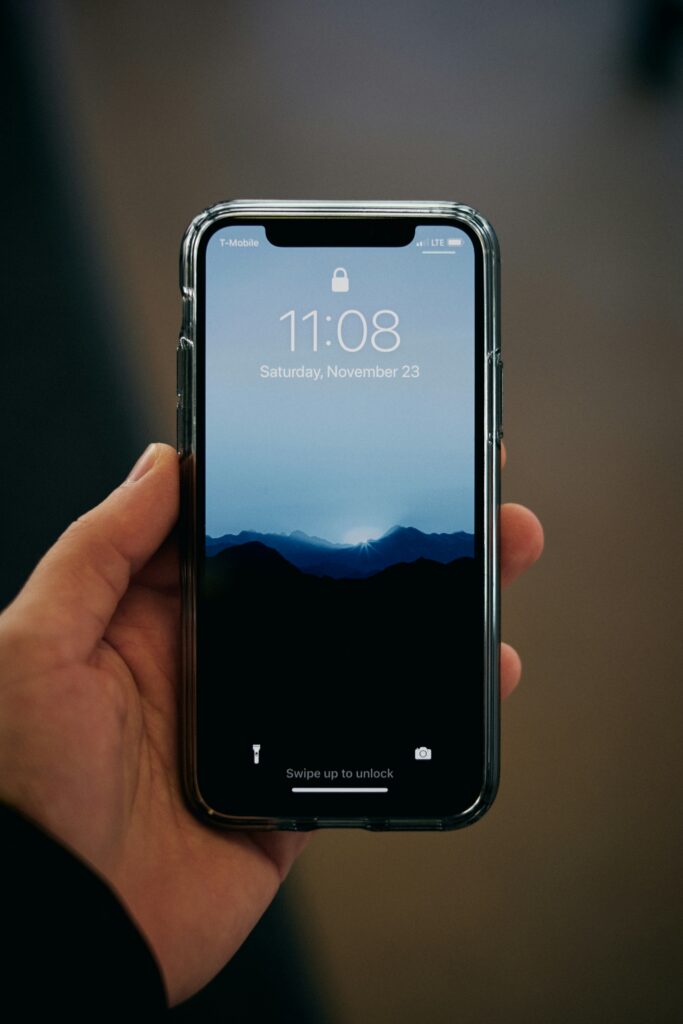
If your iPhone is running iOS 15.2 or newer and remains connected to a cellular or Wi-Fi network, Apple provides an on-device reset feature that eliminates the need for a computer.
+———————————————————————————–+
| ON-DEVICE LOCK SCREEN RESET FLOW |
+———————————————————————————–+
|
v
+——————————————-+
| Enter Incorrect Passcode Multiple Times |
+——————————————-+
|
v
+——————————————-+
| “iPhone Unavailable” / “Security Lockout” |
| Screen Appears |
+——————————————-+
|
v
+——————————————-+
| Tap “Erase iPhone” / “Forgot Passcode?” |
| in the Lower Right Corner |
+——————————————-+
|
v
+——————————————-+
| Enter Apple ID Password & Confirm Erase |
+——————————————-+
Steps to Reset on Lock Screen:
- Intentionally enter an incorrect passcode on the lock screen until the “iPhone Unavailable” or “Security Lockout” screen appears.
- Look at the bottom-right corner of the display for the “Erase iPhone” option (on iOS 17 and later, this may appear as “Forgot Passcode?”).
- Tap Erase iPhone / Forgot Passcode? and confirm that you wish to erase all content and settings.
- Enter the Apple ID password linked to the device to log out of your account.
- The device will restart, display an Apple logo with a progress bar, and wipe all local data before returning to the initial “Hello” setup screen.
Method 2: Reset Using Recovery Mode (Computer Required)
When an iPhone is fully disabled or does not offer an on-screen erase option, using Recovery Mode via a Mac or Windows PC is the most reliable hardware-level restore method.
Prerequisites:
- A Mac running macOS Catalina or newer (using Finder), or a Mac running macOS Mojave or earlier / Windows PC running iTunes or the Apple Devices App.
- A compatible USB-to-Lightning or USB-C charging cable.
+—————————————————————————————+
| RECOVERY MODE HARDWARE BUTTONS MAP |
+——————-+——————————————————————-+
| IPHONE MODEL | HARDWARE BUTTON SEQUENCE FOR RECOVERY MODE |
+——————-+——————————————————————-+
| iPhone 8, SE (2/3)| 1. Press & release Vol Up. |
| iPhone X, 11, 12, | 2. Press & release Vol Down. |
| iPhone 13, 14, 15 | 3. Press & hold Side Button until Recovery Screen appears. |
+——————-+——————————————————————-+
| iPhone 7 / 7 Plus | Press & hold Volume Down + Side Button simultaneously |
| | until the Recovery Screen appears. |
+——————-+——————————————————————-+
| iPhone 6s & older | Press & hold Home Button + Top/Side Button simultaneously |
| | until the Recovery Screen appears. |
+——————-+——————————————————————-+
Step-by-Step Recovery Mode Instructions:
Step 1: Turn Off the iPhone
Ensure the iPhone is disconnected from the computer. Power down the device completely using the standard shut-down sliders or button combinations for your model.
Step 2: Put the iPhone into Recovery Mode
Connect your cable to the computer first. While plugging the other end into your iPhone, press and hold the designated recovery button for your model:
- iPhone 8 and newer (including iPhone 15/16 series): Hold the Side Button.
- iPhone 7 / 7 Plus: Hold the Volume Down button.
- iPhone 6s and older: Hold the Home Button.
Keep holding the button until you see the Recovery Mode Screen on your iPhone display (a computer icon pointing to a cable).
Step 3: Restore the Device via Finder or iTunes
- Open Finder (on Mac) or iTunes / Apple Devices App (on Windows).
- A pop-up window will automatically detect an iPhone in recovery mode, displaying options to Update or Restore.
- Select Restore.
+—————————————————-+
| Finder / iTunes |
+—————————————————-+
| There is a problem with the iPhone that requires |
| it to be updated or restored. |
| |
| [ Cancel ] [ Update ] [ RESTORE ] |
+—————————————————-+
- Confirm your selection. The computer will download the latest official iOS firmware for your device.
- Once the download completes, your computer will erase the iPhone and install a fresh copy of iOS. Upon completion, disconnect the phone and follow the on-screen setup assistant.
Method 3: Reset Remotely via iCloud “Find My”
If your iPhone is locked or has a broken screen, but is powered on and connected to Wi-Fi or cellular data, you can trigger a remote factory reset from any web browser or another Apple device.
Requirements:
- Find My must have been enabled on the target iPhone before lockout.
- You must know the Apple ID credentials linked to the device (or have access to a family member’s device if using Family Sharing).
[Browser / Secondary Device]
|
v
iCloud.com / Find My App
|
v
Select Locked iPhone from “All Devices”
|
v
Click “Erase iPhone”
|
v
Remote Signal Sent via Internet —-> [Locked iPhone Wipes Automatically]
Steps to Erase Remotely:
- Open a web browser and navigate to iCloud.com/find.
- Sign in with the Apple ID credentials associated with the locked iPhone.
- Click on All Devices at the top of the interface and select the locked iPhone from the list.
- Click Erase iPhone.
- Confirm your choice and enter your Apple ID password if prompted.
- As soon as the target iPhone connects to a network, the remote command will execute, wiping the passcode and all stored data automatically.
Method 4: Reset via DFU Mode (Deep Firmware Update)
If Recovery Mode fails, freezes during extraction, or encounters software errors (such as iTunes Error 4013 or 3194), DFU (Device Firmware Update) Mode provides the deepest possible software restore. DFU mode bypasses the iOS bootloader entirely, allowing you to re-flash the hardware firmware from the ground up.
Step-by-Step DFU Mode for iPhone 8 and Newer:
- Connect your iPhone to your computer using a USB cable and open Finder or iTunes.
- Quickly press and release Volume Up, then quickly press and release Volume Down.
- Press and hold the Side Button for 10 seconds until the screen turns completely black.
- While continuing to hold the Side Button, press and hold the Volume Down button for 5 seconds.
- Release the Side Button, but continue holding Volume Down for another 10 seconds.
- The screen must remain completely black. If the Apple logo or Recovery Mode graphics appear, you held the buttons too long and must restart from Step 1.
- Finder/iTunes will report that it has detected an iPhone in recovery mode. Click Restore to re-flash the OS firmware cleanly.
Comparing Factory Reset Methods
To choose the optimal solution based on your available equipment and device status, review the comparison matrix below:
| Method | Computer Needed? | Apple ID Password Required? | Network Connection Required? | Success Rate |
| Lock Screen Reset (iOS 15.2+) | No | Yes (On-screen prompt) | Yes (Wi-Fi or Cellular) | High (Requires exact iOS version) |
| Recovery Mode Restore | Yes (Mac / PC) | No (During wipe; needed at activation) | Yes (To download firmware) | Very High (Standard fix) |
| iCloud “Find My” Remote Wipe | No (Any browser) | Yes | Yes (Target device must be online) | High (Requires active connection) |
| DFU Mode Restore | Yes (Mac / PC) | No (During wipe; needed at activation) | Yes (To download firmware) | Highest (Fixes deep system errors) |
Important Actions After Performing a Reset
Once the factory reset process finishes, your iPhone will display the multilingual “Hello” greeting screen. As you step through initial configuration, consider the following critical setup steps:
+———————————————————————————–+
| POST-RESET SETUP WORKFLOW |
+———————————————————————————–+
|
v
1. Select Language & Connect to Wi-Fi / Cellular
|
v
2. Authenticate Activation Lock (Enter Apple ID & Password)
|
v
3. Restore Data (Choose iCloud Backup, PC Backup, or Set Up as New)
|
v
4. Create a New Screen Passcode & Store in a Secure Password Manager
- Bypass Activation Lock: When prompted, enter the Apple ID and password originally associated with the device. If you purchased the phone second-hand and encounter an Activation Lock screen, you must contact the original owner to remove the device from their iCloud account remotely via [iCloud.com/find](https://iCloud.com/find).
- Restore Your Data: During the setup process, you will be offered options to restore your data:
- Restore from iCloud Backup: Pulls down your latest cloud snapshot over Wi-Fi.
- Restore from Mac / PC Backup: Restores local backups saved via Finder or iTunes.
- Set Up as New iPhone: Starts with a clean slate if no prior backups exist.
- Record Your New Passcode: To prevent future lockouts, choose a memorable passcode and back it up inside a dedicated, secure password manager while following Phone security and troubleshooting best practices.
Frequently Asked Questions
Can I factory reset an iPhone without losing my photos and data?
No. A factory reset removes all local encryption keys and erases all data stored on the device. However, any data previously synced to iCloud (such as iCloud Photos, Contacts, Notes, and iMessages) or backed up to a computer can be safely restored after the reset completes.
Will a factory reset remove Activation Lock?
No. Activation Lock is stored on Apple’s activation servers, not on the local device. While a factory reset successfully clears the lock screen passcode, you will still be prompted to enter the original Apple ID credentials when setting up the phone if “Find My” was turned on.
What should I do if iTunes fails or gets stuck during a restore?
If iTunes freezes during the restore process, make sure your computer’s operating system and the iTunes or Apple Devices app are updated to the latest version. Try using an official Apple USB cable, switching to a different USB port directly on the computer’s motherboard, or switching the device into DFU Mode.
Why don’t I see the “Erase iPhone” option on my lock screen?
The “Erase iPhone” button only appears if your device is running iOS 15.2 or later, has an active connection to Wi-Fi or cellular data, and has “Find My” enabled. If these conditions are not met, you must use the Recovery Mode method with a computer to reset the device.
Can third-party unlock software bypass the lock screen safely?
Most third-party software utilities simply automate standard Recovery Mode commands while charging subscription fees. They cannot bypass Apple’s server-side Activation Lock. It is safer, more reliable, and free to use Apple’s official tools (Finder, iTunes, and iCloud) described in this guide.